Scanning
When e-invoicing is not an option, scanning solutions help automate invoice delivery and processing.
With Maventa’s scanning solutions, all invoices can be received through a single pipeline. Additional features such as Detect fraud checks and reports that identify suppliers who could send e-invoices can also be enabled.
Invoice receiving must be enabled before activating any scanning service.
Choosing a scanning solution
Maventa offers several scanning solutions for data interpretation, each with different strengths. The right choice depends on the balance between data accuracy, processing speed, and cost. Scan Network and AutoScan can also be used at the same time, as each service has its own dedicated email address that can be shared with suppliers.
AutoScan
Maventa’s recommended scanning solution. Powered by Smartscan machine learning technology, AutoScan delivers fast, fully automated invoice processing with continuously improving accuracy — no manual steps needed.
Available in all supported markets except Finland, where it will be available in spring 2026.
Scan Network
Traditional scanning service that combines OCR technology with manual validation. Includes quality control — if the system finds any deviation, invoices are manually checked again.
Available in Finland, Sweden, Norway, Denmark, the Netherlands, and Belgium.
Visma Scanner & DocScan
Visma Scanner (mobile app) and DocScan (web app) for scanning and forwarding invoices using machine learning-based interpretation (Smartscan). Can be integrated directly with ERPs or accounting systems, or through Maventa.
Visma Scanner will be deprecated by the end of 2026.
Regardless of the solution used, the recipient should always verify the accuracy of scanned invoices.
Scanning features by country
| Feature | FI | NO | SE | DK | NL | BE | Other countries |
|---|---|---|---|---|---|---|---|
| Scan Network | |||||||
| AutoScan | Spring 2026 | ||||||
| Line scanning | Late 2026 |
|
|
|
|
Late 2026 | Late 2026 |
| PO number |
|
|
|||||
| Paper scan |
|
|
|||||
| Non-invoice material return email (Scan Network) | |||||||
| Non-invoice material return email (AutoScan) | 15 April 2026 | 15 April 2026 | 15 April 2026 | 15 April 2026 | 15 April 2026 | 15 April 2026 | 15 April 2026 |
| Grace period after service closure (60 days of invoice forwarding to return email) |
|
|
|
|
How scanning works
- The recipient company enables invoice receiving.
- The recipient company activates the desired scanning service.
- Once the service is activated, the recipient company receives a dedicated scan email address. A scan postal address is only provided for Scan Network in Finland and Sweden.
- The supplier sends invoices to the scanning service by email (or post).
- The scan service receives the invoices, processes them, and delivers the interpreted invoice file along with the PDF to Maventa.
- Maventa delivers the file to the recipient’s Maventa account.
Scanned invoices are treated as incoming e-invoices. The integrator fetches them the same way as any other received invoice and can request the invoice in the desired format — Maventa handles the conversion regardless of the original format. Webhooks for received invoices also apply to scanned invoices.
Sending test invoices to the scanning service is not supported in the testing environment. The scanning service can be activated in testing, but the full pipeline can only be tested in production — for example, by sending a test invoice to your own scan address.
Invoice fields from Scan Network and AutoScan
| Invoice field | Scan Network | AutoScan |
|---|---|---|
| Invoice number | ||
| Invoice date | ||
| Invoice due date | ||
| Document type |
|
|
| Currency |
|
|
| Supplier organisation number |
SE: Organisation number. NL: KvK number. DK: CVR number. FI: Organisation number (y-tunnus) |
DK: CVR. NL: KvK |
| Supplier VAT number | ||
| Supplier name |
Not found the first time an invoice is passed; automatic from the second time. If the company name cannot be found, the organisation number is shown as the name. If the organisation number cannot be interpreted, the supplier name is set to UNKNOWN_VENDOR. |
|
| Supplier address |
|
|
| Supplier country code |
|
|
| Buyer organisation number |
|
|
| Gross amount (incl. VAT) | ||
| Net amount (excl. VAT) |
|
|
| Total VAT amount | ||
| VAT percentage |
If products have different VAT percentages, the calculated percentage falls between the actual percentages. Rounding amounts are not taken into account. For NL/BE, the VAT percentage is provided by Scan Network. |
|
| VAT distribution |
|
|
| IBAN or account number |
SE: BankGiro and PostGiro (for foreign suppliers, IBAN). DK: FIK. FI: IBAN or account number. NL/BE: IBAN |
DK: FIK. Other countries: IBAN |
| Payment reference |
SE: OCR. DK: FIK code. FI: Viitenumero. NL/BE: not available |
|
| Reference name/number |
FI: Text in "Viitteenne" field. SE: Reference name/number. NO, NL, BE: not available |
|
| PO number |
|
|
Scan Network
How Scan Network works
Scan Network receives invoices either as PDF (by email) or as paper invoices, which are scanned into PDF. An Optical Character Recognition (OCR) system interprets keywords from the invoices.
After OCR interpretation and validation, all invoices go through an extra quality control. If the system finds any deviation, the invoices are manually checked again.
The interpreted invoice file, along with the original or flattened PDF, is delivered to the recipient’s Maventa account, where the recipient’s ERP can fetch them. In Finland, flattened PDFs are used by default, with the option to use the original PDF based on the vendor key.
Interpretation typically takes from a few business hours to a few days, depending on weekends, holidays, and volumes.
Opening Scan Network
The scan account can be opened through the API or the UI invoice receiving page.
REST API: POST /v1/services/scan
Before opening the scan account, make sure the company has invoice receiving enabled and has completed the customer authentication process.
When opening the scanning service, the customer provides a return email address where all non-invoice materials are delivered by the scanning service. The return email address is available in Finland, Sweden, Norway, and Denmark, but not in the Netherlands or Belgium.
To check whether Scan Network is active for an account, use GET /v1/services/scan.
Updating Scan Network
The scan account can be updated through the API or the UI invoice receiving page. Currently, the only settings that can be updated are the return addresses for non-invoice materials — the return email address and, for Finland and Sweden where postal scanning is available, the return postal address.
REST API: PUT /v1/services/scan
Closing Scan Network
The scan service can be closed through the API or the UI invoice receiving page.
REST API: DELETE /v1/services/scan
For customers in Finland, Norway, Sweden, and Denmark, when a scan account is disabled, it enters a 60-day grace period. During this time:
- PDF invoices are forwarded to the customer’s return email address.
- Paper invoices are scanned and then sent to the return email address.
After the 60-day grace period:
- The scan email address stops working.
- PDF invoices sent to the scan email address bounce.
- Paper mail is ignored without notifying the sender.
The company is responsible for informing suppliers about alternative methods for sending invoices when closing the scan account.
For customers in the Netherlands and Belgium, there is no grace period or return email functionality.
How suppliers send invoices to the scan service
The company informs its suppliers about the scan address provided when the service is activated. The scan address contains the company’s scan ID number, which is used to identify the recipient.
Suppliers can send invoices to the scanning service in two ways: by email or by post.
By email
Requirements for sending:
- Only one invoice per PDF file.
- There can be multiple PDF files per email, but only when the recipient is the same in all of them.
- The scan ID number does not need to be on the invoice image itself — the email address containing the scan ID is enough to identify the recipient.
- After sending the email, the sender receives a notification email confirming the email was sent (the notification is an automatic reply from the email service).
- If the email cannot be handled, the address is not found, or there are no PDF attachments, the sender receives an additional error notification after the first notification.
By post
Finland
The scan service identifies the recipient using the following information from the invoice image when the invoice is sent by post:
- Organisation number
- Company name
- Company OVT code
Sweden
The scan service identifies the recipient using the FeAddress (postal scan address) and company name on the envelope.
Scan ID and scan addresses
| Country | Scan ID | Email scan address | Postal scan address |
|---|---|---|---|
| Finland | Company business ID |
invoice-BID@kollektor.fi — email address without “-“ in business identity code (e.g. invoice-12345678@kollektor.fi) |
Company name, Scan ID, PL 100, 80020 Kollektor |
| Sweden | Company business ID | BID@autoinvoice.se |
Company name, AISEXXXX Scancloud, SE-831 90 ÖSTERSUND, Sweden (XXXX = customer number assigned to the company) |
| Norway | Company business ID | BID@autoinvoice.no |
− |
| Denmark | CVR number | CVRnumber@autoinvoice.dk |
− |
| Netherlands | VAT number or KvK number |
KvKnumber@autoinvoice.nl or VATnumber@autoinvoice.nl — depending on which was used when the company was registered in Maventa |
− |
| Belgium | Company business ID | BE-ENnumber@scan.maventa.com |
− |
Delivery of materials
The scan service delivers only invoices and credit notes electronically. When a customer opens the scan service, they specify a scan return address for non-invoice materials. Marketing materials are not delivered.
Delivered as e-invoices:
- Invoices
- Credit notes
Delivered by email:
- Reminders
- Agreements
- Invoices and credit notes that are missing mandatory information
Delivered by post:
- Materials that do not fit in the scanner
Discarded:
- Marketing materials such as ads, catalogues, and brochures
Refer to your pricing agreement for delivery costs.
Error handling
End users can report interpretation errors by contacting the Maventa support team. Support contacts the validation teams at the scan service provider to use the auto-learning process, where interpretation is manually corrected so that invoices are correctly interpreted the next time.
If there are problems with an invoice, users can also request rescanning.
AutoScan
AutoScan is Maventa’s recommended scanning solution for receiving PDF invoices. Powered by Smartscan machine learning technology, it interprets invoice data accurately and near-instantly — delivering results in seconds rather than hours or days. Built-in automated quality checks (VERIFIED) cross-validate key fields like amounts and VAT, so manual verification steps are not needed. The result is a fast, cost-effective scanning pipeline with continuously improving accuracy.
AutoScan is available in all supported markets except Finland, where it is expected to launch in spring 2026.
Smartscan tiers
AutoScan currently uses the Smartscan Premium tier, which includes the VERIFIED feature — a layer of automated checks that cross-validates key invoice fields to ensure they are mathematically consistent. This means fewer errors, fewer manual corrections, and smoother automated processing.
VERIFIED performs consistency checks and cross-validation across key fields on the document, such as amounts, lines, and VAT information. It checks relationships such as:
- Header totals vs. line totals
- VAT amounts vs. base amounts and VAT percentages
- Line-level totals vs. VAT amounts
If everything matches, the data is marked as verified. If discrepancies are found, Smartscan can sometimes correct values automatically based on the cross-validation.
Supported fields for VERIFIED
VERIFIED currently covers the following fields:
Header-level fields
totalInclVattotalExclVattotalVat
VAT distribution fields
percentageamountinclVatexclVat
Purchase line fields
totalInclVattotalExclVattotalAmounttotalVatpercentageVat
Smartscan ULTRA (coming later in 2026)
Later this year, Maventa plans to introduce Smartscan ULTRA as an optional higher tier. ULTRA builds on everything in Smartscan Premium and adds multiple machine learning models combined with generative AI to verify and improve data quality. Processing may take slightly longer — up to an hour — but the accuracy improvements are significant.
Smartscan ULTRA will be available as an option at an additional cost. More details will follow later in 2026.
VAT handling
AutoScan supports extracting multiple VAT levels from a document. The extraction runs on the first and last page of the document and returns only what is stated — it does not attempt to compute VAT, base amounts, or totals based on other fields. If Smartscan determines that the relevant VAT information is not present, no VAT output is generated.
How VAT appears in the output depends on the content of the invoice:
Invoices without line items:
- If the PDF contains a VAT breakdown that AutoScan can interpret, that breakdown is added to the scanned invoice. Each VAT category is listed as its own item, showing the VAT percentage and the amount of VAT paid under that percentage.
- If the invoice does not contain a VAT breakdown, AutoScan estimates the VAT percentage based on the tax information on the invoice and national VAT brackets. The estimate is calculated from total sums and the VAT amount.
- If there are different VAT categories on the invoice, the estimate will be a point estimate somewhere between those categories.
- For Swedish invoices, if the estimate is close enough to an existing Swedish VAT category, that category is assigned to the whole invoice. Otherwise, the original estimate is used.
Invoices with line items:
- VAT is listed on each line item separately.
VAT distribution fields
| Field | Type | Description | Example |
|---|---|---|---|
percentage |
string | VAT level percentage. The decimal delimiter is always a dot. | "25.0" |
amount |
string | The amount the percentage represents, rounded to two decimal points. | "585.45" |
inclVat |
string | Amount including VAT for this VAT percentage. | "2926.25" |
exclVat |
string | The base amount VAT is based on. | "2341.80" |
Opening AutoScan
Before opening AutoScan, make sure the company has invoice receiving enabled. AutoScan can be opened using the REST API method PUT /v1/services/autoscan or the user interface. The endpoint activates the service and returns the scan email address.
To check whether AutoScan is active for an account, use GET /v1/services/autoscan.
The following optional parameters can be included in the request body:
| Parameter | Description |
|---|---|
return_email_address |
Email address where non-invoice materials are forwarded. Optional from 15 April 2026, mandatory from 17 August 2026. See return email handling for details. |
features.line_scanning |
Set to true to enable line scanning. Currently in pilot mode — contact Maventa support to activate. |
Example request:
{
  "return_email_address": "returns@company.com",
  "features": {
    "line_scanning": true
  }
}
Example response:
{
  "status": "active",
  "scan_email_address": "NO-987654321@autoscan.maventa.com",
  "return_email_address": "returns@company.com",
  "features": {
    "line_scanning": true
  }
}
Once AutoScan is successfully opened, the customer receives an AutoScan email address.
Format: countrycode-BID@autoscan.maventa.com
Example: NO-987654321@autoscan.maventa.com
Updating AutoScan
You can update an existing AutoScan account using the REST API method PUT /v1/services/autoscan or the user interface. The following settings can be updated:
- Return email address — Add or change the return email address for non-invoice materials.
- Line scanning — Enable or disable line scanning. Line scanning is in pilot mode and cannot be toggled automatically — contact Maventa support to make changes.
Closing AutoScan
To disable AutoScan, use the REST API method DELETE /v1/services/autoscan or the user interface.
Sending invoices to AutoScan
To ensure successful delivery, the supplier should make sure:
- The email contains only one PDF attachment.
- The attached PDF is a recognisable invoice or credit note.
- The PDF file size does not exceed 5 MB.
- The recipient’s email address is active.
If processing fails, an error email is sent to the sender. Non-PDF emails and emails containing viruses are automatically discarded.
Return email handling
Starting 15 April 2026, AutoScan supports forwarding non-invoice materials to a return email address — similar to how Scan Network handles non-invoice material delivery.
How it works
When a PDF sent to a company’s AutoScan email address cannot be recognised and processed as an invoice, Maventa forwards it to the company’s return email address. Maventa creates a new email with the original PDF as an attachment and includes the original sender’s email address in the email body for identification. The original email is not forwarded as is.
Non-invoice materials are only forwarded when the AutoScan service is active for the company. When the service is closed, the sender receives a reply that the email address no longer exists.
As a reminder, AutoScan only accepts PDF attachments. Emails containing other attachment types are rejected and not processed further. Only PDFs are forwarded to the return email address.
All forwarded emails are scanned for viruses and spam. However, as with any email forwarding, Maventa cannot guarantee that forwarded content is entirely free of risk.
Return email parameter timeline
-
15 April 2026 — The
return_email_addressparameter becomes available as an optional field in the API. A new mandatory field is also added in the UI for new activations. -
17 August 2026 — The
return_email_addressparameter becomes mandatory in the API. The AutoScan service will be closed for existing users who have not provided a return email address by this date.
Existing AutoScan users are not required to add a return email address immediately. Until one is configured, the previous behaviour of sending an error email to the sender continues. However, the return email address must be in place by 17 August 2026 to avoid service disruption.
Cost
Each non-invoice email forwarded to the return email address is billed at the same rate as a scanned invoice through AutoScan.
Error handling
To report interpretation errors, contact the Maventa support team.
AutoScan invoice line scanning
AutoScan also provides a feature to interpret invoice line-level data. Line scanning currently processes only the first 5 pages of the invoice. This feature is in pilot mode — contact Maventa support to enable it.
Interpreted line fields:
- Item number
- Line description
- Product code
- Quantity
- Unit
- Unit price
- Total incl. VAT
- Total excl. VAT
- Total VAT
- VAT %
- Discounts (coming soon)
Later in 2026, an enhanced line scanning option will be available that scans all pages of the invoice without the 5-page limitation. This will be available at an additional cost.
Visma Scanner and DocScan
Visma Scanner (mobile app) and DocScan (web app from Visma Home) can be used to scan and forward invoices and vouchers. Both use Smartscan machine learning technology for data interpretation.
Visma Scanner will be deprecated by the end of 2026.
Enabling Visma Scanner or DocScan
The receiver company needs a Maventa account with invoice receiving enabled. The sender needs the Visma Scanner mobile app or the DocScan web app (from Visma Home).
Supplier activation service
The supplier activation service identifies suppliers who currently send invoices through the scanning service but could send them electronically instead.
Version 1 identifies suitable suppliers and sends the list to the buyer by email. The buyer then contacts suppliers directly using their own email systems or other channels. This version requires opting in through the scan_notification_interval company setting.
Version 2, branded as Request e-invoices, replaces the email report with an API and user interface that allows the buyer to trigger Maventa to send activation emails directly to suppliers.
Both versions are available and can be used independently or simultaneously.
Version 1
The supplier activation feature helps customers identify suppliers who currently send PDF or scanned invoices but could send e-invoices instead. The report makes it easier to reach out to suppliers and encourage them to switch to e-invoicing, helping reduce manual work and scanning costs. The report is generated from invoice data transmitted through Maventa over the past six months.
Maventa sends the supplier list by email. The customer can choose how often to receive the report: daily, weekly, or monthly. The report is sent to one or more email addresses defined in the company settings.
The feature is also available through the Detect service, providing similar insights per invoice through the API instead of the report email.
The supplier activation feature is managed through the supplier_activation object in the PATCH /v1/company/settings endpoint.
Example request body:
{
  "supplier_activation": {
    "notification_interval": "weekly",
    "scan_notification_emails": [
      "info@company.com",
      "reports@company.com"
    ]
  }
}
This setting is not currently visible in the public Swagger documentation.
notification_interval defines how often the supplier activation report is sent:
-
off— report disabled -
daily— sent every day -
weekly— sent once a week -
monthly— sent once a month
scan_notification_emails — one or more email addresses where the report is delivered.
Version 2
Supplier activation version 2, or the Request e-invoices service, allows you to both retrieve supplier information and send preformatted e-invoice request emails to suppliers, all through the API.
List suppliers
Use POST /v1/company/suppliers/query to get a list of suppliers who have sent PDF (scanned) invoices to the account but are capable of sending e-invoices to others. The parameter oldest_invoice_time defines how far back Maventa looks for scanned invoices. The maximum lookback period is one month. Note that include_notified has no effect yet.
{
  "include_notified": false,
  "oldest_invoice_time": "2026-01-13T09:32:38.130Z"
}
{
"status": "completed",
"suppliers": [
{
"company_bid": "123456780",
"company_country": "FI",
"invoice_count": 23,
"company_email": "supplier.contactperson@email.com",
"company_name": "Example Supplier Company Oy"
}
]
}invoice_count indicates the number of PDF invoices the supplier has sent during the selected time period. The company_email field is currently not populated but may be added in future updates if this information becomes available from the scanned invoice data.
Send the e-invoice request email to suppliers
Use POST /v1/company/suppliers/notifications to send notification emails to suppliers. You can use the supplier details retrieved from the query endpoint above, or if contact information is missing, specify the supplier names and email addresses manually. The language parameter determines the language of the notification email. Templates are available in English (en) and in the local language of the company. Currently supported countries are Sweden (se), Finland (fi), the Netherlands (nl), and Norway (no).
{
  "suppliers": [
    {
      "email_address": "supplier.contactperson@email.com",
      "name": "Example Supplier Company AB",
      "language": "se"
    }
  ]
}
Example of failed sends:
{
  "failures": [
    {
      "email": "supplier.contactperson@email.com",
      "reason": "Unsupported language fi"
    }
  ]
}
The response is an empty JSON {} if all sends succeeded. Any failed sends are listed in the response.
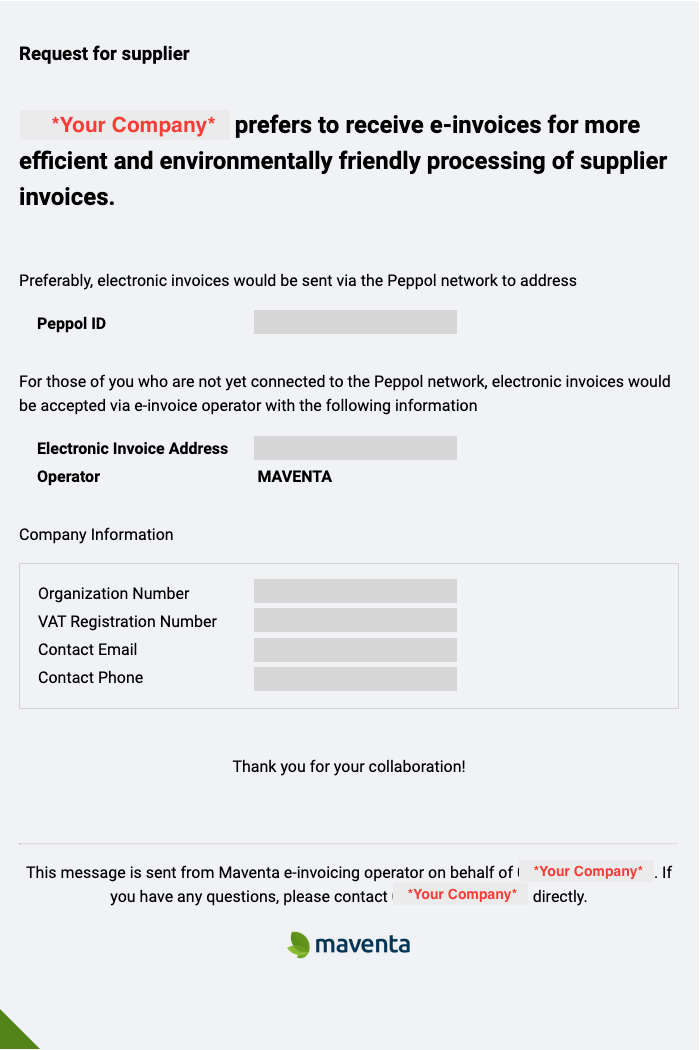
Email content
The notification email includes the following details about the company:
- Peppol ID — if the company is registered to receive invoices through the Peppol network
- E-invoicing address
- Organisation number or VAT number — depending on how the company is registered in Maventa and the country of registration
- Contact email — taken from the company account’s invoice email if defined; otherwise, the general company email is used
Example of what the email looks like for a Swedish company: