Embeddable User Interface
The Embeddable User Interface (EUI) allows ERP integrators to embed Maventa’s interface directly into their product. End customers get access to Maventa features and services without waiting for ERP-side development, reducing time to market for new capabilities.
What to handle via API vs EUI
Although most functionality is available through the EUI, some functions are best handled through a direct API integration:
- Customer onboarding — registering companies with Maventa
- Sending and receiving invoices and other documents
- Invoice handling workflows such as approval
- Adding new users to a Maventa company account
Everything else can be handled through the EUI:
- Listing invoices and documents, and viewing their details
- Resending and rerouting invoices
- Managing Maventa settings
- Registering to receive through different networks
- Searching for receiver’s e-invoice addresses
- Listing consumer agreements (Norway)
- Enabling and using services such as consumer invoicing (currently Norway only), receivables management (Finland), Detect, and Visma Scanner
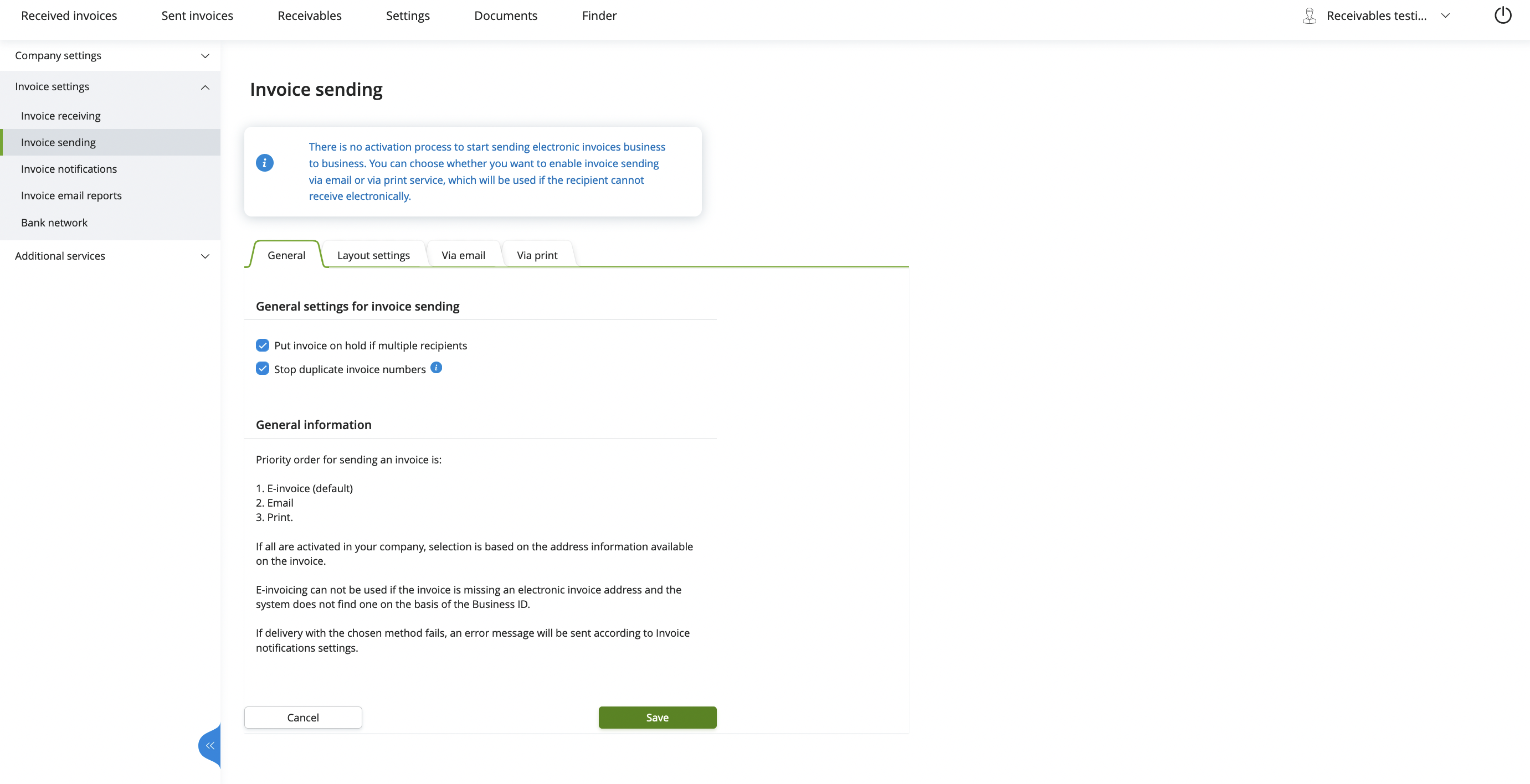
How the EUI looks
How to take the EUI into use
Decide what to show and how
Start by deciding which parts of the EUI your end customers need. Then consider how to present those views:
- Single entry point — One button that opens the full EUI, letting customers navigate to the page they need
- Contextual embedding — Different EUI views embedded in relevant parts of the ERP (e.g. a settings view in the ERP’s settings section, invoice lists alongside the ERP’s invoice listing)
Read more about customising the EUI. To get started, contact Maventa support and request an ERP profile. Maventa will set up a profile based on your preferences.
Choose an embedding method
Maventa offers two embedding methods:
- Script embedding — Include a script tag on your HTML page. Recommended for products that run in the user’s browser.
- Iframe embedding — Use an iframe or similar solution. Note that cross-domain content loading may cause issues with this method.
Both methods require fetching an access token for the company.
Hosting domains
The EUI is hosted under the following domains:
Production:
autointerface-embeddable.maventa.comautointerface-embeddable.autoinvoice.visma.com-
autointerface-embeddable.visma.net(Visma internal use)
Testing:
autointerface-embeddable-stage.maventa.comautointerface-embeddable-stage.autoinvoice.visma.com-
autointerface-embeddable-stage.visma.net(Visma internal use)
Fetch an access token for the company
The EUI uses token-based authentication with company_uuid, user_api_key, and vendor_api_key.
Fetch the token from the AutoXChange OAuth2 endpoint using the following parameters:
| Parameter | Description | Value/example |
|---|---|---|
| vendor_api_key | The vendor API key for the ERP | 37fc1ebc-dd4f-11ea-87d0-0242ac130003 |
| scope | The scope required — eui is mandatory |
eui |
| grant_type | The OAuth2 grant type | client_credentials |
| client_id | The company UUID | 298c6ce2-dd4f-11ea-87d0-0242ac130003 |
| client_secret | The user API key | 32d74434-dd4f-11ea-87d0-0242ac130003 |
Endpoints:
- Testing:
https://ax-stage.maventa.com/oauth2/token - Production:
https://ax.maventa.com/oauth2/token
cURL example for fetching a token
curl -X POST "https://ax-stage.maventa.com/oauth2/token" \
-H "accept: application/json" \
-H "Content-Type: multipart/form-data" \
-F "grant_type=client_credentials" \
-F "client_id=company_uuid" \
-F "client_secret=user_api_key" \
-F "scope=eui" \
-F "vendor_api_key=erp_vendor_api_key"
Example of a successful token response
{
  "access_token": "eyJhbGciOiJIUzI1NiIsInR5cCI6IkpXVCJ9.eyJpZGVudG......",
  "token_type": "bearer",
  "expires_in": 3600,
  "scope": "eui"
}
Once you have an access token, use it with your chosen embedding method: script embedding or iframe embedding.
Method 1 - Script embedding
Add a <script> tag to your HTML page:
<body>
    <div style="height: 1024px" id="eui-container"></div>
    <script src="https://autointerface-embeddable.maventa.com/embed"
            data-token="eyJ0eXAiOiJKV1QiLCJraWQiOiJjODJhZTdiZTU...."
            data-container-id="eui-container"
            data-default-path="/invoices"
            data-profile="my_erp_profile_name"
            data-locale="en"
            data-setup-top_menu="false"
    ></script>
</body>| Parameter | Description | Value/example |
|---|---|---|
| src | Main URL for EUI | https://autointerface-embeddable.maventa.com/embed |
| data-token | The access_token from the OAuth2 response |
eyJhbGciOiJIUzI1NiIsInR5cCI6IkpXVCJ9…. |
| data-container-id | Must match the id of the container div. The EUI renders inside this element |
eui-container |
| data-default-path | Page to open on load. See direct URLs | /invoices |
| data-profile | The ERP’s profile name for customisation | my_erp_profile_name |
| data-locale | Language of the EUI (fi, se, no, dk, nl, en) |
fi (default: company’s country) |
| data-setup-top_menu | Setup parameter for further customisation | false = hide / true = show |
| div style=”height:..” | A height must be set on the container, either static or dynamic. Without it, the EUI will not be visible | height: 1024px |
In the example above, the EUI opens directly to the invoices page with the language set to English and the top menu hidden.
With script embedding, there is no way to renew the token. The access token expires after one hour, ending the user’s session. Make sure your application allows users to refresh the page and re-authenticate when the token expires.
Method 2 - Iframe embedding
Endpoints:
| Testing | Production | |
|---|---|---|
| Get access token | https://ax-stage.maventa.com/oauth2/token | https://ax.maventa.com/oauth2/token |
| Initiate EUI session | https://autointerface-embeddable-stage.maventa.com/authentication/token | https://autointerface-embeddable.maventa.com/authentication/token |
| Renew token | https://autointerface-embeddable-stage.maventa.com/authentication/renew | https://autointerface-embeddable.maventa.com/authentication/renew |
Monitor token expiry for automatic session renewal
While the EUI session is active, monitor the token expiry time. The expires_in attribute in the token response indicates how long the access token is valid. Deduct a few minutes from this value to avoid session interruptions. Stop the renewal process when the user closes the EUI or logs out.
To enable token renewal, pass a unique ID as the session_id parameter in the initial authentication request (see the next step). This ID associates the session with subsequent renewal requests.
If the token is not renewed before it expires, the session ends and the user must re-authenticate.
Open the EUI session in a browser component
Once you have a token, open the EUI in a browser component. Depending on the component’s capabilities, pass the token either in the POST body or in the Authorization header as a Bearer token.
| Parameter | Description | Value/example |
|---|---|---|
| token | The access_token from the OAuth2 response |
eyJhbGciOiJIUzI1NiIsInR5cCI6IkpXVCJ9…. |
| profile | The ERP’s profile name for customisation | my_erp_profile_name |
| locale | Language of the EUI (fi, se, no, dk, nl) |
no |
| redirect_to | Page to open on load. See direct URLs | /invoices |
| session_id | Unique session identifier (UUID recommended) | erp_users_session_id |
cURL for initiating an EUI session with POST
curl -X POST "https://autointerface-embeddable-stage.maventa.com/authentication/token" \
-H "Content-Type: multipart/form-data" \
-F "token=eyJhbGciOiJIUzI1NiIsInR5cCI6IkpXVCJ9......" \
-F "profile=my_erp_profile_name" \
-F "locale=no" \
-F "redirect_to=/invoices" \
-F "session_id=erp_users_session_id"
HTML form example for token login
<!DOCTYPE html>
<html>
<head></head>
<body>
  <form action="https://autointerface-embeddable-stage.maventa.com/authentication/token" method="POST" target="_blank">
    <fieldset>
      <legend>Authentication using token</legend>
      <br/>
      <label>token:</label>
      <input type="text" name="token" size="100" />
      <br/>
      <label>session_id:</label>
      <input type="text" name="session_id" size="70" />
      <br/>
      <label>redirect_to:</label>
      <input type="text" name="redirect_to" size="70" />
      <br/>
      <label>profile:</label>
      <input type="text" name="profile" size="40" />
      <br/>
      <br/>
      <input type="submit" value="Log in"/>
    </fieldset>
  </form>
</body>
Renew the token for an existing session
When the token is about to expire, fetch a new access token and pass it to the EUI renewal endpoint together with the session_id from the initial request. If you can extract the session cookie from the browser component, you can use that instead of the session_id.
cURL for renewing an EUI session token
curl -X POST "https://autointerface-embeddable-stage.maventa.com/authentication/renew" \
-H "Content-Type: multipart/form-data" \
-F "token=eyJhbGciOiJIUzI1NiIsInR5cCI6IkpXVCJ9.eyJpZGVudGl0eSI6InVzZXIiLCJ1c......" \
-F "session_id=erp_users_session_id"
Customise your own view of the EUI
The EUI is highly customisable. Each ERP can control which views and features are visible to end customers — for example, hiding the received invoices list if the ERP does not support invoice receiving. Customisation is done through ERP profiles and optional setup parameters.
ERP profiles
ERP profiles are the primary way to customise the EUI. Each profile is created by the Maventa team based on the ERP’s requirements. Contact Maventa support to request a profile before starting the integration.
...&profile=name_of_the_profileKey points about profiles:
- Each ERP can have multiple profiles (e.g. one per product version or customer group)
- Profiles control which views, settings, and services are visible
- When Maventa adds new services or features to the EUI, the Maventa team contacts ERP integrators to discuss enabling them. Some new services work entirely through the EUI, while others may require ERP-side or API integration changes.
Setup parameters
Setup parameters provide additional control on top of profiles. They use the same structure as profiles but override profile settings at the request level. This is useful for adjusting views for specific customers without creating separate profiles. Empty values for any setup parameter are treated as false.
For example, to hide invoice receiving for customers who do not use that feature:
...&setup[sections][invoices][inbound]=false
&setup[sections][settings][invoice][receiving]=false
List of setup parameters
Use these parameters to show or hide specific parts of the EUI. To request additional parameters, contact Maventa support.
Menu
-
menu— show/hide all menus (top and left)-
menutop_menu— show/hide only the top menu -
menuleft_menu— show/hide only the left menu
-
Invoice lists
-
sectionsinvoices-
sectionsinvoicesinbound— show/hide the received invoices list -
sectionsinvoicesoutbound— show/hide the sent invoices list and invoices in error state list
-
Settings
-
sectionssettings— show/hide the entire settings tab from the top menu-
sectionssettingscompany— show/hide company settings from the left menu-
sectionssettingscompanydetails— show/hide company details -
sectionssettingscompanyaddress— show/hide company address information
-
-
sectionssettingsinvoice— show/hide all invoice settings from the left menu-
sectionssettingsinvoicereceiving— show/hide invoice receiving settings -
sectionssettingsinvoicesending— show/hide invoice sending settings -
sectionssettingsinvoicelayout_settings— show/hide invoice layout settings -
sectionssettingsinvoicenotifications— show/hide invoice notification settings
-
-
Other documents
-
sectionsdocuments-
sectionsdocumentsorder— show/hide orders -
sectionsdocumentsorder_response— show/hide order responses -
sectionsdocumentscatalogue— show/hide catalogues -
sectionsdocumentscatalogue_response— show/hide catalogue responses
-
Direct URLs
Direct URLs open the EUI on a specific page. Use these to provide contextual navigation — for example, linking to the invoice list from the ERP’s invoicing section, or opening the settings page from the ERP’s settings area. You can also link directly to a single invoice’s details.
Available URLs
Dashboard
-
/— Dashboard (currently a blank page with menus)
Invoice lists
-
/invoices— Received invoices -
/invoices/outbound— Sent invoices -
/invoices/error— Sent invoices in error state
Invoice details
-
/invoices/{invoice_id}— Details for a received invoice -
/invoices/outbound/{invoice_id}— Details for a sent invoice
Invoice settings
-
/settings/invoice/sending/index— Invoice sending settings -
/settings/invoice/notifications/index— Invoice notification settings -
/settings/invoice/receiving/index— Invoice receiving settings (network activation, scanning service) -
/settings/invoice/bank_network_no/index— Consumer invoicing settings (Norway) -
/settings/invoice/bank_network_fi/index— Bank network activation (Finland)
Company settings
-
/settings/company/details/index— Company details -
/settings/company/address/index— Company address information
Other document lists
-
/documents— Received documents -
/documents/outbound— Sent documents -
/documents/error— Sent documents in error state
Other document settings
-
/settings/document/receiving/index— Receiving settings for non-invoice documents -
/settings/additional_services/visma_scanner_receiving/index— Visma Scanner activation
Services
-
/finder— Finder (search for e-invoice addresses) -
/receivables— Receivables management (Finland) -
/consumer_vendor_registry— Consumer agreements (Norway)
Receivables details
-
/receivables/{invoice_id}— Details for a receivable assignment
Supported browsers
- Chrome
- Firefox
- Safari
- Edge